 VectorExpert
Home · Contour · Sections and profile
Draw a line across the survey. Get sections and a profile from the surface.
Sections… cuts cross sections across a line every so many metres, at the offsets you give; Profile… runs a long section along a line. Every level is worked out on the TIN, never guessed. Send the sections out as a CSV for setting out, or add them as a route and carry on in the Cross Section screen.
On the plan
What the Contour screen draws
A section line square to the alignment at every interval, labelled with its chainage. Every level along it is read from the surface.
Schematic plan, made-up levels.
How it works
In the app, step by step
- 01
Give the alignment
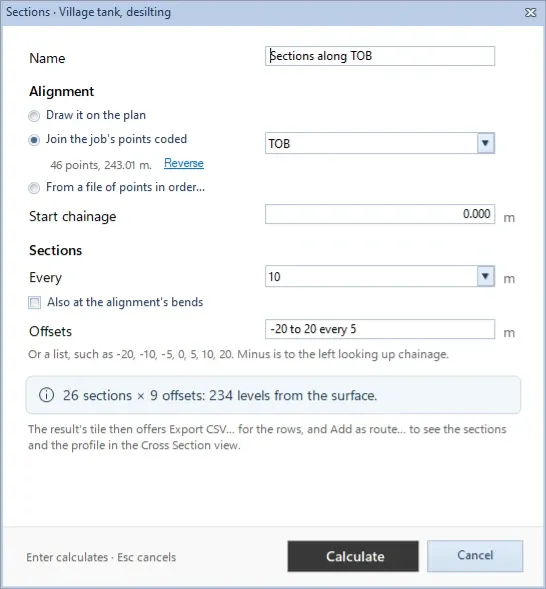
Draw it on the plan, join the job's points of one code in the order they were surveyed, or read it from a file of points in order.
Contour › Calculate › Sections… - 02
Set the interval and offsets
A section every 5, 10, 20 or 25 m, and at the alignment's bends if you like. Offsets as a range (-20 to 20 every 5) or a list; minus is to the left looking up chainage.
Every · Offsets - 03
Calculate
The plan shows the alignment, a line across it at each section with its chainage, and any point off the surface in another colour. The Sections sheet lists every point.
Calculate - 04
Export a CSV
Point, northing, easting, R.L., code, chainage and offset for every point with a level, to mark the sections out on site or use in another program.
Export CSV… - 05
Add as a route
The sections become a route of the project, with the levels as the ground (NSL), and open in the Cross Section screen for a template and the volume abstract.
Add as route… - 06
Run a profile
Profile… takes a level along a line every 1, 2, 5 or 10 m and where it crosses a contour, and prints as a long section under the plan.
Contour › Calculate › Profile…
Details
Everything in sections and profile
| Feature | What it does | Detail |
|---|---|---|
| Alignment | ||
| Drawn | Click its points on the plan; Snap to points puts them on surveyed points | Draw it on the plan |
| Coded points | The job's points of one code, joined in the order they were surveyed | Join the job's points coded |
| From a file | A point file joined in the file's order; its levels are not used | From a file of points in order… |
| Chainage | Start at the line's own chainage, or run it from the other end | Start chainage · Reverse |
| Sections | ||
| Interval | A section every so many metres, and at each bend if you like | 5 · 10 · 20 · 25 m |
| Offsets | A range or a list; minus is to the left looking up chainage | -20 to 20 every 5 |
| Levels | Each worked out on the triangle it falls in; a point outside the survey has no level, and none is guessed | From the TIN |
| Profile | ||
| Interval | A level every so many metres along the line | 1 · 2 · 5 · 10 m |
| Contour crossings | A level where the line crosses each contour, noted in the Profile sheet | And where it crosses a contour |
| Printed profile | A long section under the plan: the ground line on a grid, the vertical scale ten times the horizontal, with ground level and chainage under it | 10× vertical |
| Output | ||
| CSV | Point, northing, easting, R.L., code, chainage and offset | .csv |
| Route | A route of the project whose sections open in the Cross Section screen. Add as route again replaces its levels, listing your hand edits first. | Add as route… |
| AutoCAD and Excel | The alignment, section lines and chainages, or the profile, each on its own layer; the result's sheets in Excel | ALIGNMENT · SECTION_LINE · PROFILE_GROUND |
On screen
What you'll see
Common questions
Where do the section levels come from?
From the surface: each level is worked out on the TIN triangle the point falls in, not taken from the nearest point. A place outside the surveyed area has no level, and none is guessed.
Can I design on the sections afterwards?
Yes. Add as route… makes them a route of the project, with the levels as the ground (NSL). They open in the Cross Section screen, where you can lay a template and take them into a volume abstract.
What happens to the route if the survey changes?
The route is a copy. When the job's points change the result goes out of date, and Add as route… again replaces the route's levels, after listing any levels you edited by hand so you can keep them.
Can I mark the sections out on site?
Yes. Export CSV… writes each point's northing, easting, R.L., chainage and offset. Points off the surface are left out, as they have no level.
How is the profile drawn?
Under the plan, as a long section: the ground line on a grid with the vertical scale ten times the horizontal, and a table of ground level and chainage under it.