 VectorExpert
Home · Contour · Site cut and fill
Type a formation level. See the cut and fill before you calculate.
Volume… works out the earthwork to bring a plot to a formation level, inside its boundary. As you type the level, the dialog shows the cut, the fill and the level at which they balance. The result goes on the plan as shading with a zero line, into sheets for Excel, and onto a printed cut-fill plan.
On the plan
What the Contour screen draws
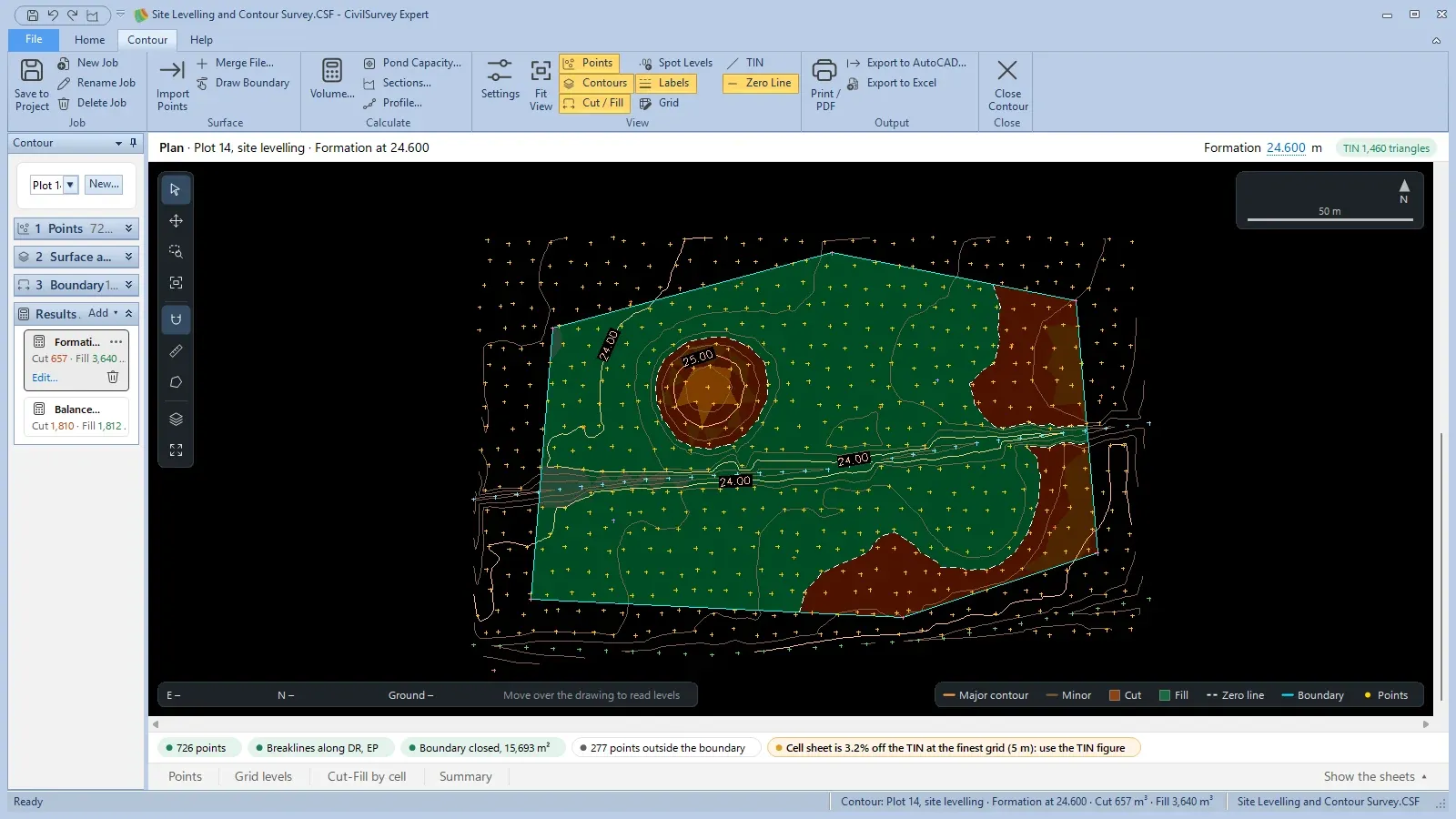
Inside the boundary, ground above the formation level is cut and ground below it is fill. The dashed zero line is where the ground is at the formation level.
Schematic plan, made-up levels.
How it works
In the app, step by step
- 01
Set the boundary
The volume is worked out only inside the job's boundary: the pillars joined by their code, the outline of the points, or a boundary you draw. A result can also have a boundary of its own.
3 Boundary - 02
Open Volume…
From Add in Results, the Calculate group, or a right-click on the plan. It opens at the balancing level rounded to 0.25 m.
Contour › Calculate › Volume… - 03
Type the formation level
The name and the banner follow as you type: the cut, the fill and the area at that level, with the balancing level under it. Use it puts the balancing level in.
Formation level · Use it - 04
Add a fall, or another surface
A fall in per cent towards a bearing, or 1 in N with a cross fall, or a plane through three pegs from the engineer. Or work down to another job's surface, such as the engineer's formation levels.
Add a fall… · Use another surface… - 05
Calculate and read the plan
Cut and fill are shaded, stronger where they are deeper, with a dashed zero line where the ground is at the formation level. The readout gives the formation and the depth under the pointer.
Cut / Fill · Zero Line · Grid - 06
Sheets and the cut-fill plan
Grid levels, Cut-Fill by cell and Summary open under the plan and save to Excel. Print / PDF puts the plan, the EARTHWORK table and the legend on an A3, A2 or A1 sheet.
Show the sheets · Print / PDF…
Details
Everything in site cut and fill
| Feature | What it does | Detail |
|---|---|---|
| Formation | ||
| Flat level | Cut and fill against one formation level, inside the boundary | Formation level |
| Balancing level | The level where cut equals fill, shown as you type and found by halving | Use it · within 0.001 m³ |
| A fall | A fall in per cent towards a bearing, which can be picked on the plan with two clicks; or 1 in N, with a cross fall | Falls % towards ° |
| Three pegs | A plane through three levels given by the engineer | Through three levels instead |
| Another surface | Down to another job's surface: imported formation levels, or a second survey of the same site | Use another surface… |
| Its own boundary | A result can be worked out on an area drawn for it alone; the job's boundary stays as it is | Draw one on the plan for this result |
| Quantities | ||
| Volume | Worked out exactly on the TIN, prism by prism, inside the boundary; nothing is sampled | TIN prisms |
| Grid check | A cell sheet on a grid, with the four-point formula for a cell that has both cut and fill. If it is more than 3% off the TIN, the checks strip says so. | 5 · 10 · 20 m grid |
| Live level | Click the formation level over the plan, type another and press Enter: the result is worked out again | Formation in the bar |
| Out of date | When the points, the surface or the boundary change, the result says so and offers Recalculate | Recalculate |
| Sheets and output | ||
| Points | Gains a Cut (+) / Fill (−) column: each point's depth | Points |
| Grid levels | Each node's easting, northing, ground R.L., formation and depth, named by column and row | Grid levels |
| Cut-Fill by cell | Each cell's area, the depth at its four corners, and its cut and fill, with totals | SW · SE · NE · NW |
| Summary | Cut, fill and net from the TIN and from the grid, the areas, the formation and balancing levels, and the boundary | Summary |
| Cut-fill plan | The plan with shading and grid depths, the EARTHWORK table, legend, notes and title block | A3 · A2 · A1 · PDF |
| AutoCAD | The shading, the grid and the zero line, each on its own layer | CUT · FILL · ZERO_LINE · GRID |
On screen
What you'll see
Common questions
How is the site volume calculated?
On the TIN itself: each triangle inside the boundary gives the exact prism between the ground and the formation, so nothing is sampled. A grid cell sheet is worked out as well, as a check.
Why is the grid figure different from the TIN figure?
A grid reads the ground only at its nodes, and shares a cell crossed by the zero line by the four-point formula. The TIN figure is exact for the surveyed surface. If the cell sheet is more than 3% off it, the checks strip says so and suggests a finer grid.
Can it find the level where cut equals fill?
Yes. The Volume dialog shows the balancing level as you type, and Use it puts it in. It is found by halving until the cut and the fill agree within 0.001 m³.
Can the formation slope so rain runs off?
Yes: a fall in per cent towards a bearing, a fall of 1 in N with a cross fall, or a plane through three pegs. The level you type is then the formation level at the centre of the boundary.
Can I work out the earthwork between two surveys of a site?
Yes. Import the second survey, or the engineer's formation levels, as a job of its own, then choose Use another surface… and pick that job: the cut and fill are worked out down to its surface.