 VectorExpert
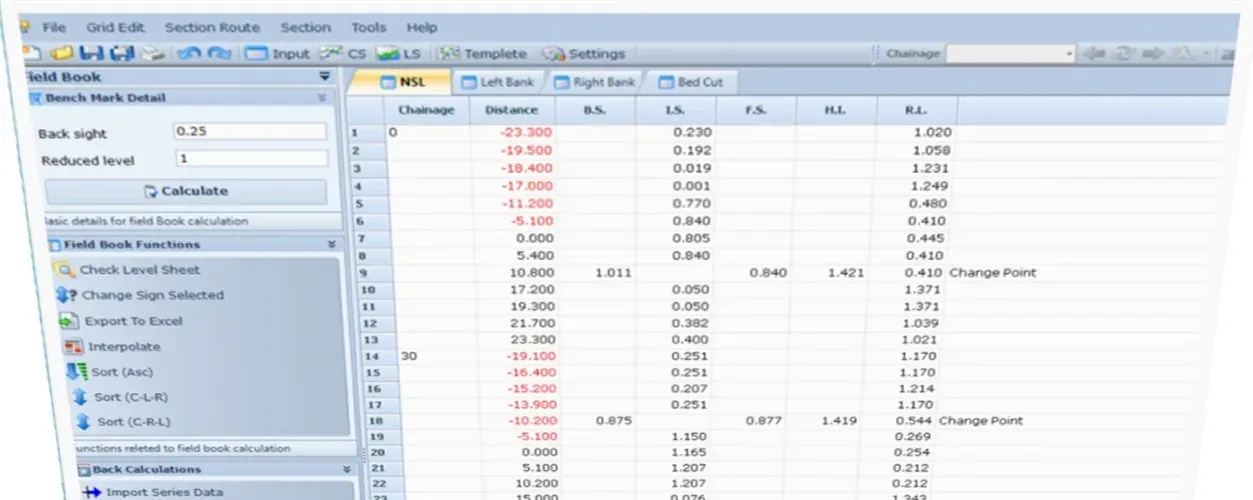
Every field book is a sheet in one project workbook. Enter the bench mark, then B.S., I.S. and F.S. as they were read on site. CivilSurvey Expert reduces the levels, runs the arithmetic check, and keeps your own formulas and columns with the project.
Try it
Book the levels, on a real chainage
CH 0+030 of the CSE_Sample1 canal project that installs with the trial, using the same calculation as CivilSurvey Expert.
In CivilSurvey Expert
How it works
In the app, step by step
- 01
Start a project
Create it from the Start page with a name and folder. It opens with an NSL field book, ready to type into.
Start page › New project - 02
Enter the bench mark
Row 2 is the bench mark row. Type its B.S. and R.L.; H.I. is a live formula. BM, B.M., TBM and Bench Mark are all recognised.
Row 2 - 03
Book the readings
Chainage on the first row of each group only, the rows below inherit it. Offsets left of centre are negative and show in red.
Chainage · Offset · B.S. · I.S. · F.S. · Remark - 04
Calculate R.L.s
One click reduces every level. A row with a B.S. or F.S. becomes a change point. If a row has no staff reading, the calculation stops there and that row is selected.
Side panel › Calculate R.L.s - 05
Check the level sheet
The side panel shows a green or red card comparing ΣB.S. − ΣF.S. with Last R.L. − First R.L., with both sums.
Side panel › Check level sheet - 06
Tidy and share
Sort each chainage, change the sign of offsets, find and replace across every sheet, and export the book or the whole project to Excel.
Ctrl+F Ctrl+H
Details
Everything in this stage
| Feature | What it does | Detail |
|---|---|---|
| Sheet | ||
| Columns | Chainage, distance, staff readings, H.I., R.L. and remark | Ch · Offset · B.S. · I.S. · F.S. · H.I. · R.L. · Remark |
| Your own work | Add formulas, formats, extra columns and your own sheets. They are saved inside the project file. | Columns I onward · extra sheets |
| Sheet aids | Three-decimal format, negatives in red, number validation and frozen headings | 0.000 · ±1,000,000 |
| Undo | Every command, from Calculate to Sort, is one step in the undo history | Ctrl+Z Ctrl+Y |
| Tidy | ||
| Sort | Order each chainage the way your book is written; chainages stay ascending | Asc · C-L-R · C-R-L |
| Change sign | Flip the offset sign of selected rows, skipping blanks and zeros | Side panel |
| Find and replace | Next/previous, find all, match case, whole cell, this sheet or all sheets. Headings and computed cells are protected. | Ctrl+F Ctrl+H F3 |
| Excel | ||
| Import from other programs | Columns are recognised by their headings, and a 'BM' first row becomes the bench mark. Choose for each sheet what it becomes. | ch / station · offset / dist · bs · is · fs · hi · rl / level · remark |
| Safety copy | The project is saved and a dated copy is kept before anything is imported | (before import yyyy-MM-dd HHmm) |
| Export | The whole project as one workbook with a cover sheet of bench marks, or one field book as a level-book sheet | .xlsx · FieldBook.xlt |
| Interpolate chainages | Builds a TIN from the surveyed sections and slices it at a regular interval into an Excel level book | From · To · Interval |
On screen
What you'll see
Common questions
Does it use rise and fall?
No. R.L.s are reduced by the height-of-instrument method, and the arithmetic check compares ΣB.S. − ΣF.S. with the difference between the first and last R.L.
Can I bring in a field book from another program?
Yes, through Excel. CivilSurvey Expert recognises common column headings such as Ch, Station, Offset, BS, IS, FS, RL, Level and Remark, ignores units like “(m)”, and keeps a copy of your project before importing.
Can I keep my own calculations next to the book?
Yes. Add formulas, extra columns or whole sheets. They are stored in the .CSF project file with everything else.
What if I only have levels, not staff readings?
Calculate will offer Back calculation instead, which works the readings out from the levels and your bench mark. See the reverse field book stage.