 VectorExpert
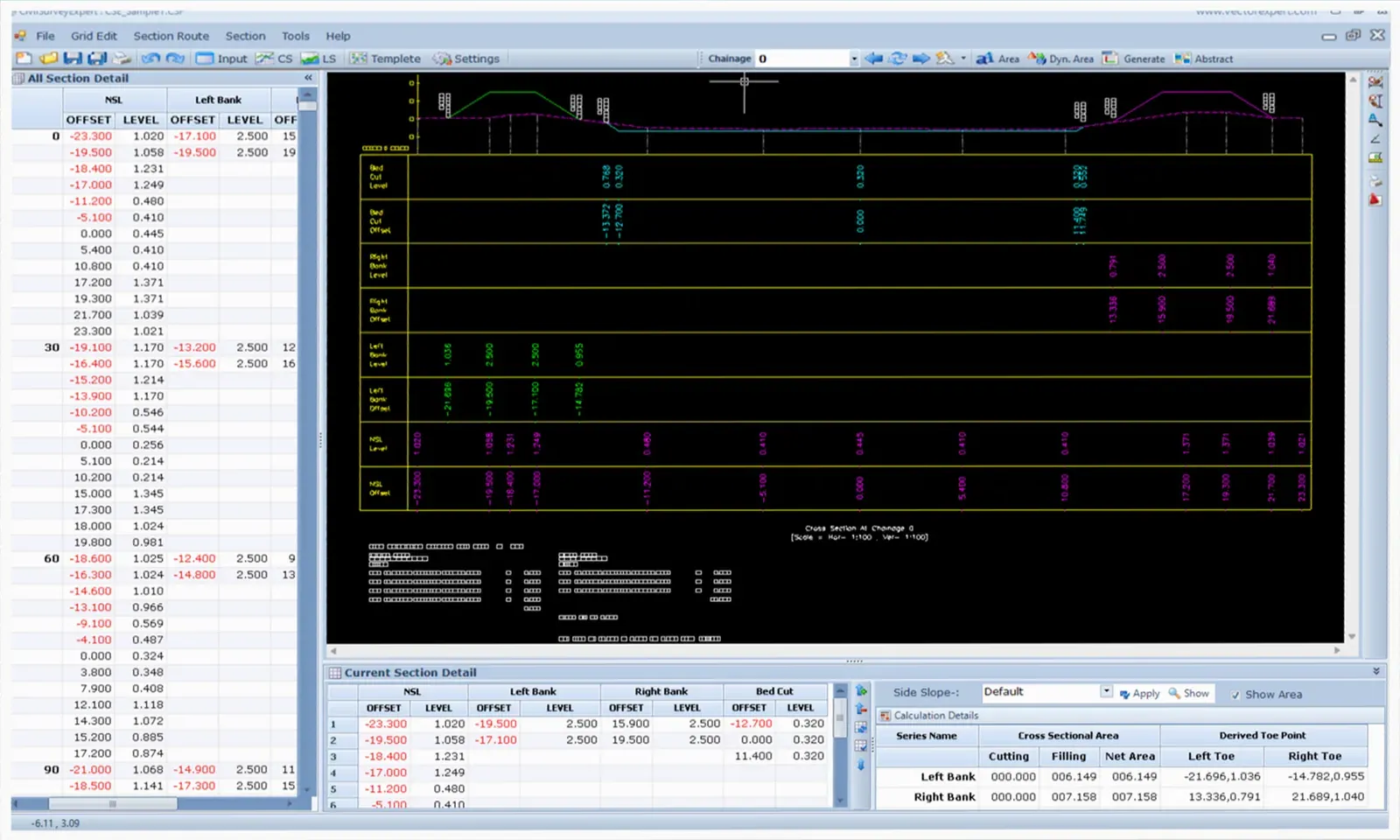
Drag a point, nudge a whole layer, or type into the grid. The drawing, the current-section grid and the all-sections grid stay in step, and cut, fill and toe points update as you work. It all happens in the built-in CAD, with no AutoCAD licence needed.
Try it
Adjust by hand, on a real chainage
CH 0+030 of the CSE_Sample1 canal project that installs with the trial, using the same calculation as CivilSurvey Expert.
In CivilSurvey Expert
How it works
In the app, step by step
- 01
Open the section
Go to the chainage with the navigator or type it in.
F6 Ctrl+G - 02
Drag a point
Grab any vertex of a layer. Lock Offset keeps the move vertical; Lock Level keeps it horizontal. The grid updates while you drag.
Lock Offset · Lock Level - 03
Read a point
Get Reading: click anywhere to read its offset and level. The status bar always shows the cursor's offset and level.
Get Reading · Snap - 04
Change many levels at once
Select cells in the Current Section Detail grid, then Add To Selection or Subtract From Selection and type the value.
Add To Selection · Subtract From Selection - 05
Round off
Round the selected levels to two decimals in one step.
Round Off - 06
Keep the edits
Update sends the current section to the all-sections grid; Save writes it into the project. Next time, choose to load the saved edits instead of rebuilding.
Ctrl+S
Details
Everything in this stage
| Feature | What it does | Detail |
|---|---|---|
| Editing | ||
| Drag with locks | Move vertices with offset or level held | Lock Offset · Lock Level |
| Bulk values | Apply one value to every selected cell | Add · Subtract |
| Round off | Selected cells to two decimals | 0.00 |
| Grids | Both the current-section grid and the all-sections grid are editable | Update · Reload |
| Built-in CAD | ||
| View | Zoom extents, window and previous, pan, undo and redo | Right-click menu |
| Edit | Copy, move, join and erase drawing objects | Edit menu |
| Readout | Live offset and level under the cursor; click a line to see which layer it is | Status bar |
| Snap | All snap modes plus polar tracking | Toggle Snap |
| No obligations | Everything above runs inside CivilSurvey Expert | No AutoCAD licence |
| Results | ||
| Live areas | Cut, fill and net area for every layer, with left and right toe points | Current Section Detail |
| Saved with the project | Edited sections are stored in the .CSF file and can be reloaded later | Rebuild or load saved |
On screen
What you'll see
Common questions
Do edits change the original field book?
No. Section edits are saved as section data in the project. To turn the final sections into a field book, use Reverse field book.
Can I undo a drag?
Yes. Undo and redo are on the right-click menu of the drawing.
Can I move a point sideways only?
Yes. Turn on Lock Level and the point keeps its level while you drag it.
Is AutoCAD needed for any of this?
No. The CAD is built into CivilSurvey Expert. No AutoCAD licence, no obligations.